
Authenticated Web Application Vulnerability Scans Written on . Posted in How-To.
How to Run Authenticated Web Application Vulnerability Scans
The largest attack surface of modern web applications is only accessible to users once logged in. While a standard unauthenticated application vulnerability scan can find issues on your landing pages, it won't see what's happening inside your dashboard or settings pages. To get a complete security picture, you need to run an Authenticated Application Vulnerability Scan.
With Panoptic Scans, you can easily scan the authenticated portion of any website by providing a simple login script. Here is our step-by-step guide on how to set it up using ZAP.
But first, what is an authenticated application vulnerability scan?
An authenticated scan logs into your target application just like a real user. This allows the scanner to:
- Discover "hidden" URLs and API endpoints only visible to logged-in users.
- Test forms and functions (like profile updates or billing) for vulnerabilities like SQL Injection or XSS.
- Provide a significantly higher attack surface coverage for your security audit.
Authenticated vulnerability scanning is available to Basic, Premium and Pro accounts.
Record the Login with Selenium IDE
Panoptic Scans uses Selenium recordings to automate the login process. Selenium is a widely-used open-source tool for browser automation.
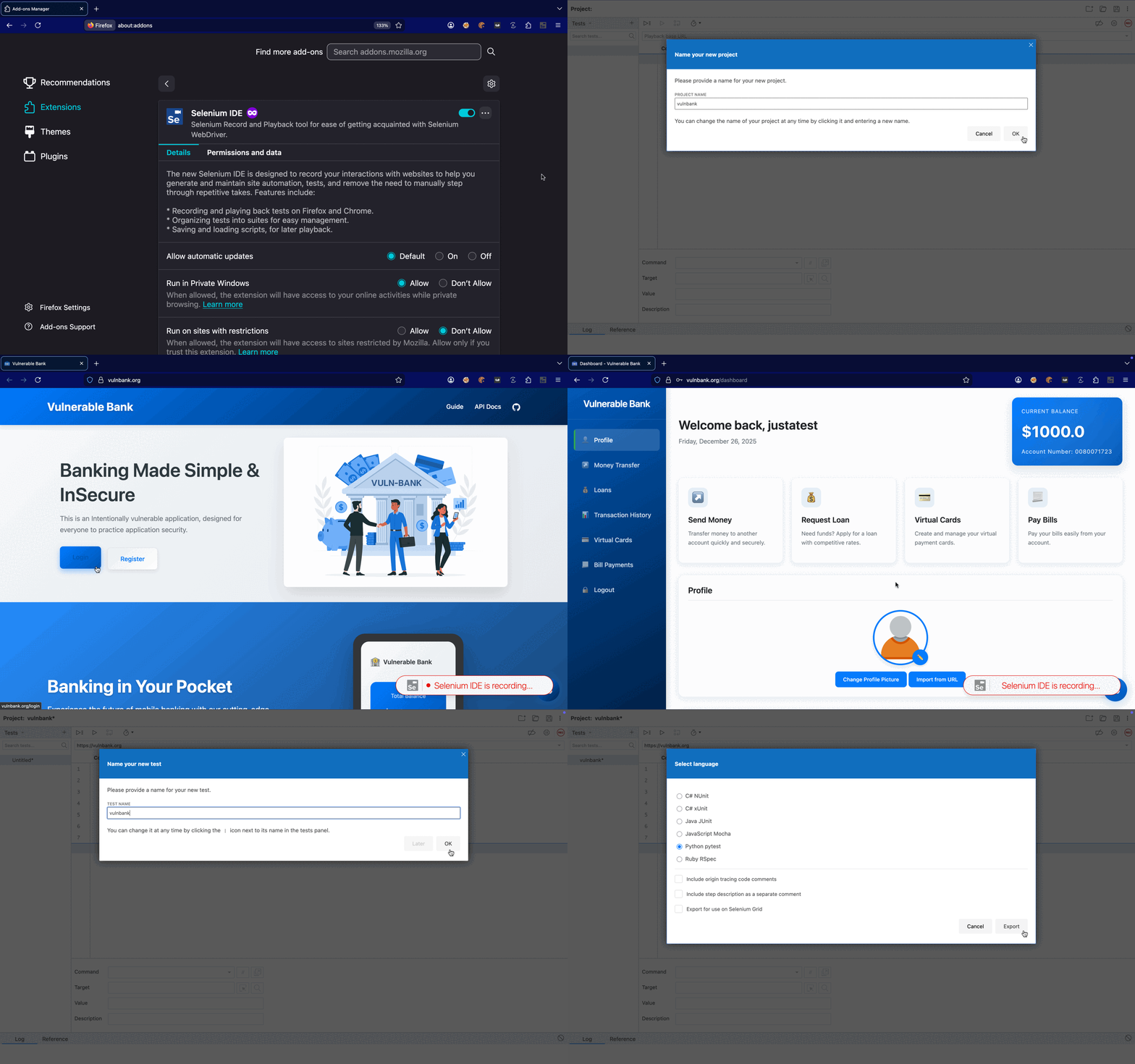
- Install the Selenium IDE extension for Firefox or Chrome.
- Open the extension, start a "New Project," and enter your website's URL.
- Click Start Recording. A new browser window will open.
- Perform your login exactly as a user would. Tip: Use a dedicated "test" account with no real production data.
- Once logged in, stop the recording and save your project.
Export to Python
Panoptic Scans requires the login script in Python format to execute it securely in our scanning environment.
- In Selenium IDE, right-click on your recorded test in the sidebar.
- Select Export.
- Choose Python pytest as the format.
- Save the
.pyfile to your computer.
Upload to Panoptic Scans
Now, bring that script into your Panoptic Scans dashboard to enable the authenticated scan.
- Create a new scan or edit an existing one.
- Set the Scan Type to
ZAP. - Toggle the Enable Authenticated Scanning checkbox.
- Click Choose File and upload the Python script you exported in Step 2.

Run and Review Results
Once saved, launch your scan. Panoptic Scans will run your login script to capture session cookies, and then pass those credentials to the ZAP scanner.
When the scan finishes, you will see a detailed report including vulnerabilities found in both public and private areas of your application.
Conclusion
Authenticated scanning is the difference between a surface-level check and a deep security audit. By using Selenium and Panoptic Scans, you can automate this process and ensure your entire application - inside and out - is protected against modern threats.
Ready to secure your app? Log in to Panoptic Scans and start your first authenticated scan today.