
Authenticated Scanning
Authenticated scanning lets Panoptic Scans exercise your web application after a successful login - so ZAP can reach pages, APIs, and workflows that anonymous visitors never see. This guide explains what the feature is, who can use it, and how to record and upload a login script step by step.
What is authenticated scanning and why it matters
Most public scans only see what is available without credentials. Real risk often lives behind login pages: user profiles, admin panels, account settings, and role-specific features. Authenticated scanning automates logging in with a browser-driven script, captures session state, and hands that context to ZAP so dynamic tests cover authenticated surfaces - not just the landing page.
Plan availability
Authenticated scanning is available on Basic, Premium, and Pro plans. It applies only to ZAP scans; other scanner types do not use this workflow.
Step-by-step setup
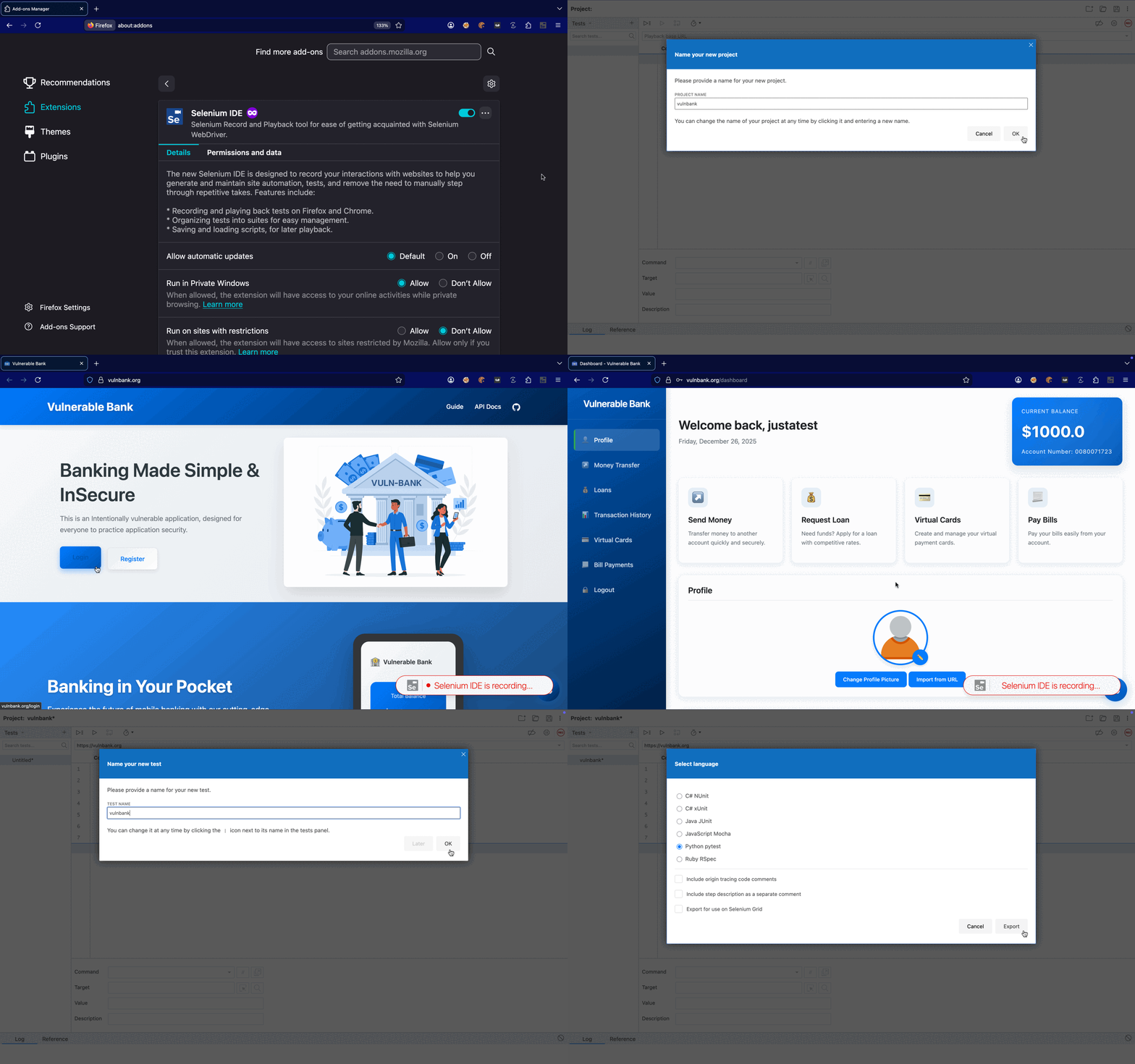
- Install Selenium IDE - Add the Selenium IDE browser extension for Firefox or Chrome so you can record interactions without writing code by hand.
- Record the login sequence - Open your target application in the browser, start a new recording in Selenium IDE, and perform the exact steps a user takes to sign in (navigate to the login page, fill fields, submit, and wait until the post-login view is stable). Keep the sequence minimal and repeatable.
-
Export as Python pytest - Export the recording as Python in pytest format, which produces a
.pyfile you will upload to Panoptic Scans. - Create a ZAP scan and enable the option - In Panoptic Scans, create a new ZAP scan and check Enable Authenticated Scanning.
-
Upload the script - Upload your
.pylogin script. The maximum file size is 1 MB. -
Set the target URL - Enter the application URL. It must start with
http://orhttps://and should match the origin your script expects. - Run the scan - When the scan runs, Panoptic Scans executes your login script to capture session cookies and related state, then passes that context to ZAP for authenticated testing.
Tip: Always use a dedicated test account created for scanning - not a production administrator or shared super-user. Limit blast radius if the script or scan behaves unexpectedly.
Tip: The scanner will click buttons and submit forms according to your recording and ZAP’s crawl. That can create or change data in the test account (e.g., profile updates, messages). Plan credentials and environments accordingly.
Info: Authenticated scanning is available for ZAP scans only. OpenVAS, Nmap, and Nuclei workflows do not use Selenium login scripts.
FAQ: Troubleshooting login scripts
- The scan reports authentication failed or timed out.
- Confirm the script runs locally against the same URL scheme (HTTP vs HTTPS) and host. Check for extra steps after login (CAPTCHA, 2FA, consent banners) that Selenium cannot complete - those flows usually need a simplified test tenant or disabled MFA for the test user.
- Login works once but fails on rerun.
- Sessions may expire or CSRF tokens may rotate. Re-record with explicit waits for elements, avoid hard-coded sleeps where possible, and ensure the export matches the current login page structure.
- Upload rejected or script too large.
- Keep the exported file under 1 MB. Remove commented debug output, unused imports, or redundant steps from the Selenium IDE export if the file is bloated.
- Wrong page or redirect loop.
- Verify the target URL is the entry point your script expects. Mixed content, regional redirects, or SSO gateways may require recording starting from the same URL Panoptic Scans will use.
For general scan configuration, see Running Scans.