
Scan Results & Reports
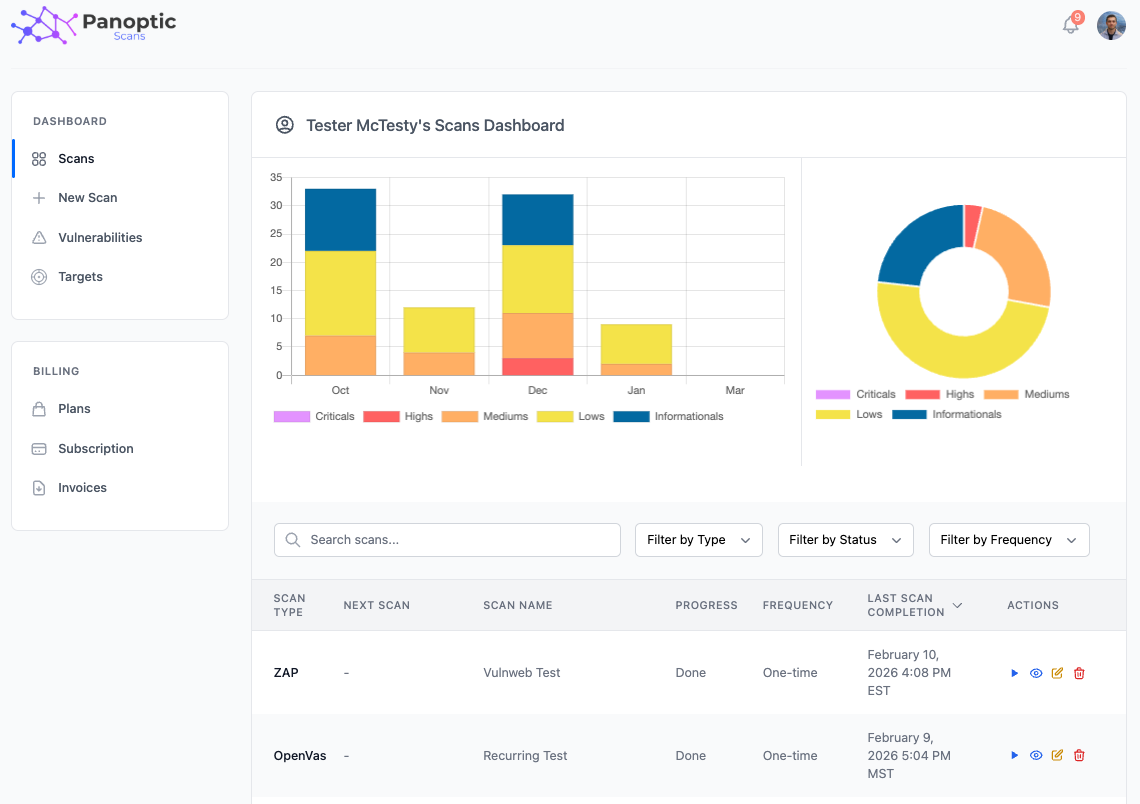
After you create scans, Panoptic Scans aggregates status, findings, and exportable reports in one place. This page describes how to read scan status, open detailed results, download reports in several formats, work with recurring scan history, rerun finished scans, and use email delivery.
Viewing results on the Scans dashboard
Go to the Scans dashboard to see every scan in your workspace. Each row summarizes the scan name, type, target, and current state so you can quickly find what is queued, running, or finished.
Scan status indicators
Scans move through clear states you will see on the dashboard and detail views:
- Queued - The scan is waiting for an available worker slot.
- Running - The scanner is actively executing against your target(s).
- Completed - The run finished successfully; findings and reports are available.
- Failed - The run did not complete; check details and logs for errors or connectivity issues.
Detailed results
Click a scan to open its detail view. There you can review findings, severities, and metadata for that run, drill into individual issues, and access download actions when the scan has completed.
Downloading reports
For completed scans, Panoptic Scans can generate reports in multiple formats so you can share results with stakeholders or import data into other tools. Supported export formats typically include PDF, CSV, HTML, TXT, and XML - use the format that fits your workflow (human-readable summaries, spreadsheets, or structured data).
Scan history
For recurring scans, the platform keeps a history of past runs. Open the scan’s detail page to move between executions and compare what changed run over run - useful for tracking remediation and new issues after each scheduled pass.
Rerunning a completed scan
When you want a fresh assessment with the same configuration (targets, options, and scanner), use Rerun from the scan’s actions or detail view. A new run is queued without forcing you to recreate the scan from scratch.
Email notifications
Panoptic Scans can email you when a scan completes and deliver or link to reports according to your Report Recipient Email setting. Ensure that address is correct on each scan (or your account defaults) so notifications and attachments reach the right team.